
Teams & assignments
Two tools split the work of a growing organization: teams grant a group of people the same project access in one move, and assignments hand a specific slice of a project (a book, some chapters, a lane) to a specific person.
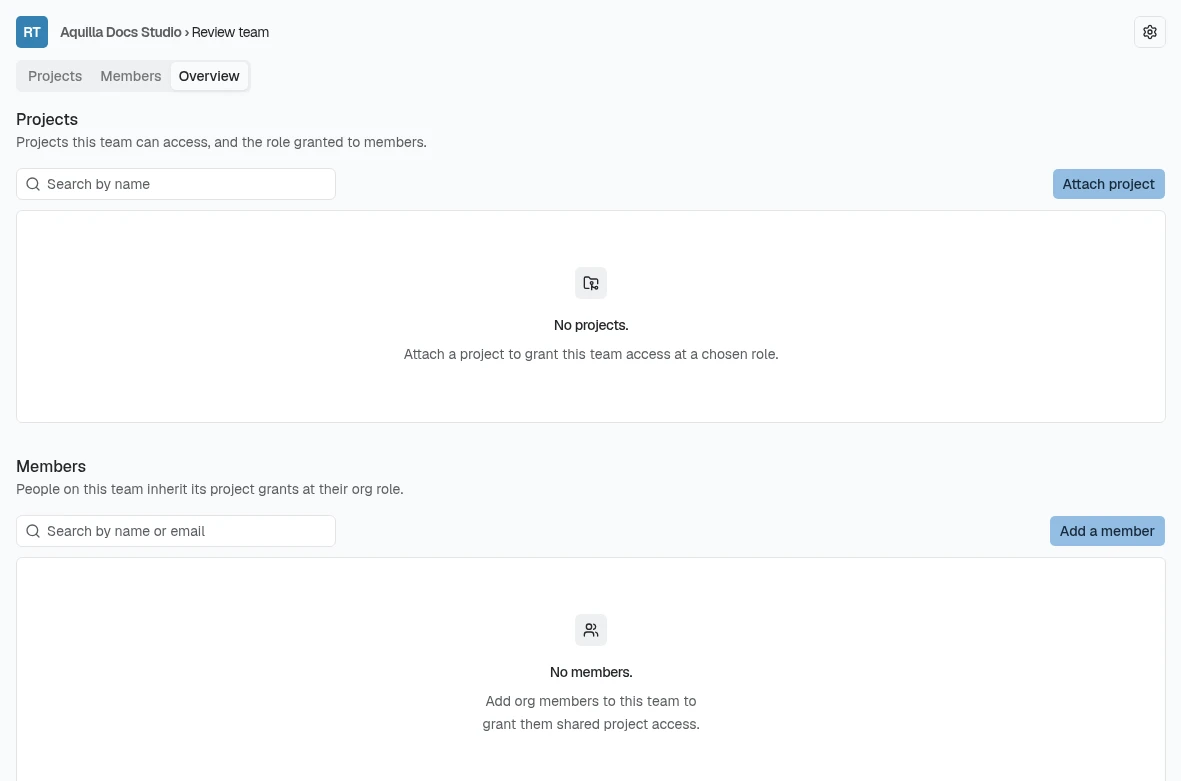
Open Teams in the organization sidebar. The page’s own summary is the whole idea: “Group members and grant project access together.” New team asks for a name and an optional description; each team page then has the tabs Projects (open when the page loads), Members and Overview, which stacks both sections on one page:
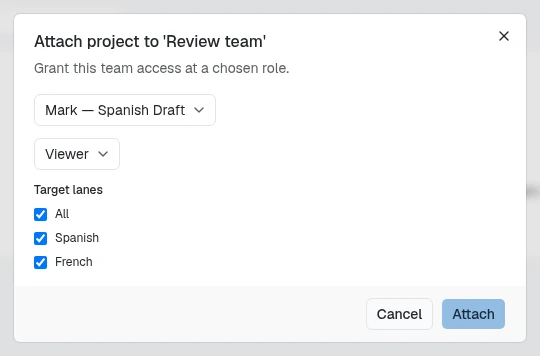
- Projects: projects attached to the team, each with the role the attachment grants. Attach project picks a project and a role from the standard role ladder. When the project has target lanes, the dialog also shows a Language lanes list: tick All (every current lane) or only the lanes this team should cover. The choice covers the lanes that exist now, not ones added later. In the project list, an organization admin can change it afterwards from the row’s menu, under Language lanes.
- Members: the people on the team. “People on this team inherit its project grants at their org role.” Add a member opens a dialog where you pick org members, or type a username or email under Invite someone outside the organization, then choose Add. See People from outside the organization.
The mechanics to keep in mind:
- A team grant is one of the paths access can arrive by, next to direct invites and org-wide roles. When someone holds more than one grant, the highest wins, exactly as on Roles & permissions.
- Attaching a project at Reviewer does not demote a member who already has Contributor directly; it only raises people below that level.
- Creating and managing teams needs Maintainer access or above in the organization. Team settings (the gear on a team’s page) renames the team, edits its description, and holds the Danger zone for deleting it.
People from outside the organization
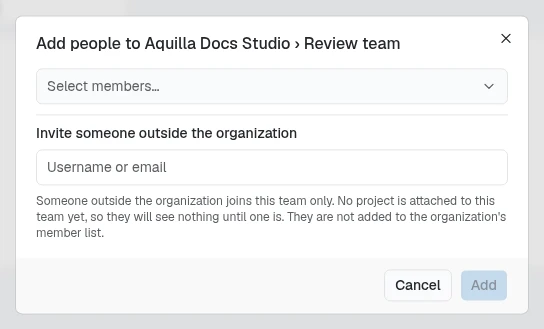
Section titled “People from outside the organization”A team can include someone who isn’t an org member, such as a freelance reviewer. Add a member opens a dialog titled “Add people to” the organization and team, such as “Add people to Aquilla Docs Studio › Review team”. Pick org members from Select members…, or enter someone’s username or email under Invite someone outside the organization. The dialog says what they will reach: “Someone outside the organization joins this team only, and reaches its projects: {projects}. They are not added to the organization’s member list and see nothing else.” If no project is attached to the team yet, it reads instead: “Someone outside the organization joins this team only. No project is attached to this team yet, so they will see nothing until one is. They are not added to the organization’s member list.” Add stays greyed out until you pick or enter someone.
On the team’s member list, such a person’s org role reads Outside org (“Not on this organization’s member list. They reach only the projects attached to the teams they are on.”). If the email has no Aquilla account yet, invite them to a project by email instead; see Invites.
Assignments
Section titled “Assignments”Assignments answer “who is translating what, by when”. They live in two places: each project’s Team card on its overview page, and the organization-wide Assigned to me page in the sidebar, where every member sees their own queue as a table of assignment, file, project, progress, and due date. An assignment of chapters reads as ranges, book by book, such as “MAT 1–20” or “MAT 1–3, 5 · MRK 2”; hover it for the full label. Click the progress count to see what it is out of: “{done} of the {total} cells in this assignment are done. The count covers only this assignment, not the whole file.” Opening an assignment lands on the first line its language still owes, by what that language delivers: on an Audio language, the first line still waiting for its recording.
On the project overview, the Team card starts expanded and you can collapse it for that visit; the Members card below it starts collapsed.
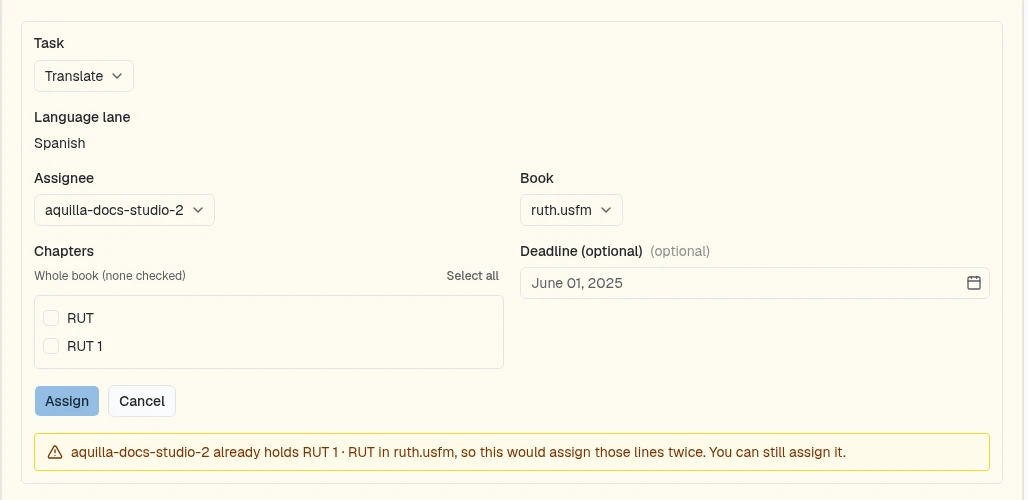
To hand out work, open a project’s overview and use Assign… on the Team card, or Assign… in a language’s ⋯ menu in the Languages table, which opens the form on that language. The Team card shows Assign… only while an organization is chosen in the switcher, not All organizations. The form asks for:
- an Assignee (any project member),
- a Book (one of the project’s files),
- Chapters, when the file has them: check specific chapters, or leave “Whole book (none checked)”,
- an optional Deadline,
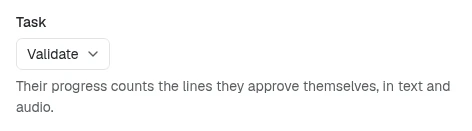
- a Task: Translate (the default) or Validate. Choosing Validate hands the person just the validating, and the form explains: “Their progress counts the lines they approve themselves, in text and audio.”
From a language’s ⋯ menu, the form is Assign work, with Task, Scope, Language lane, Files / books, Assign to, Deadline (optional) and Note (optional).
Only people on the project can be given work. When the person list (Assignee on the Team card’s form, Assign to in Assign work) has no one else to offer, the form says “Only people on this project can be given work.” Maintainers and above get an Add someone to this project link beside it, which opens the project’s Members settings; anyone else reads “Ask a project maintainer to add the person to this project first.” In Assign work, when no one is staffed on any language, that line gives way to the Language lane message described below.
If the person already holds some of the same lines, the form warns you in amber, for example “sofia-alvarez already holds MAT 21–28 in Matthew, so this would assign those lines twice. You can still assign it.” It only warns: Assign still works. Only the same person, the same task and the same language count, so a Validate assignment over someone’s own Translate assignment, or work in another language, raises no warning. The check reads who holds what in the file, so it only shows to people allowed to see member progress (Maintainer and above by default; see organization settings).
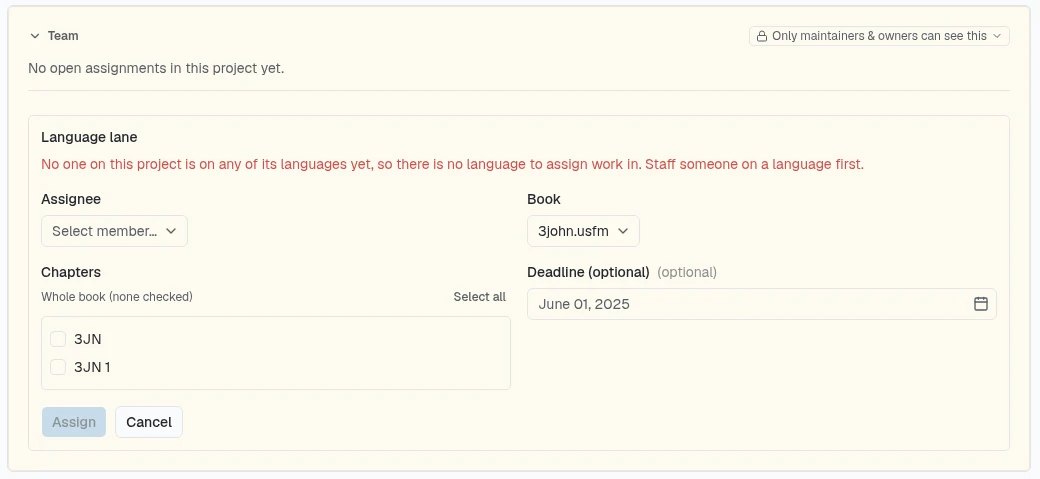
Every assign surface names the Language lane the work is for, even on a project with a single lane (the field simply names that lane). On a project with several lanes, the form opens on the lane you came from. If you did not come from one lane (from the organization’s all-languages view, for example), no lane is chosen: Assign stays blocked until you pick one, and the menu reads “Choose the language lane this work is for.” The lane list offers only languages that someone on the project is staffed on. When teams are attached to the project, it also drops lanes no attached team is tied to: a team saved with Language lanes contributes only those lanes, and a team without a saved lane list counts as tied to every lane. If no one is, the field reads “No one on this project is on any of its language lanes yet, so there is no language lane to assign work in. Staff someone on a language lane first.” and Assign is refused.
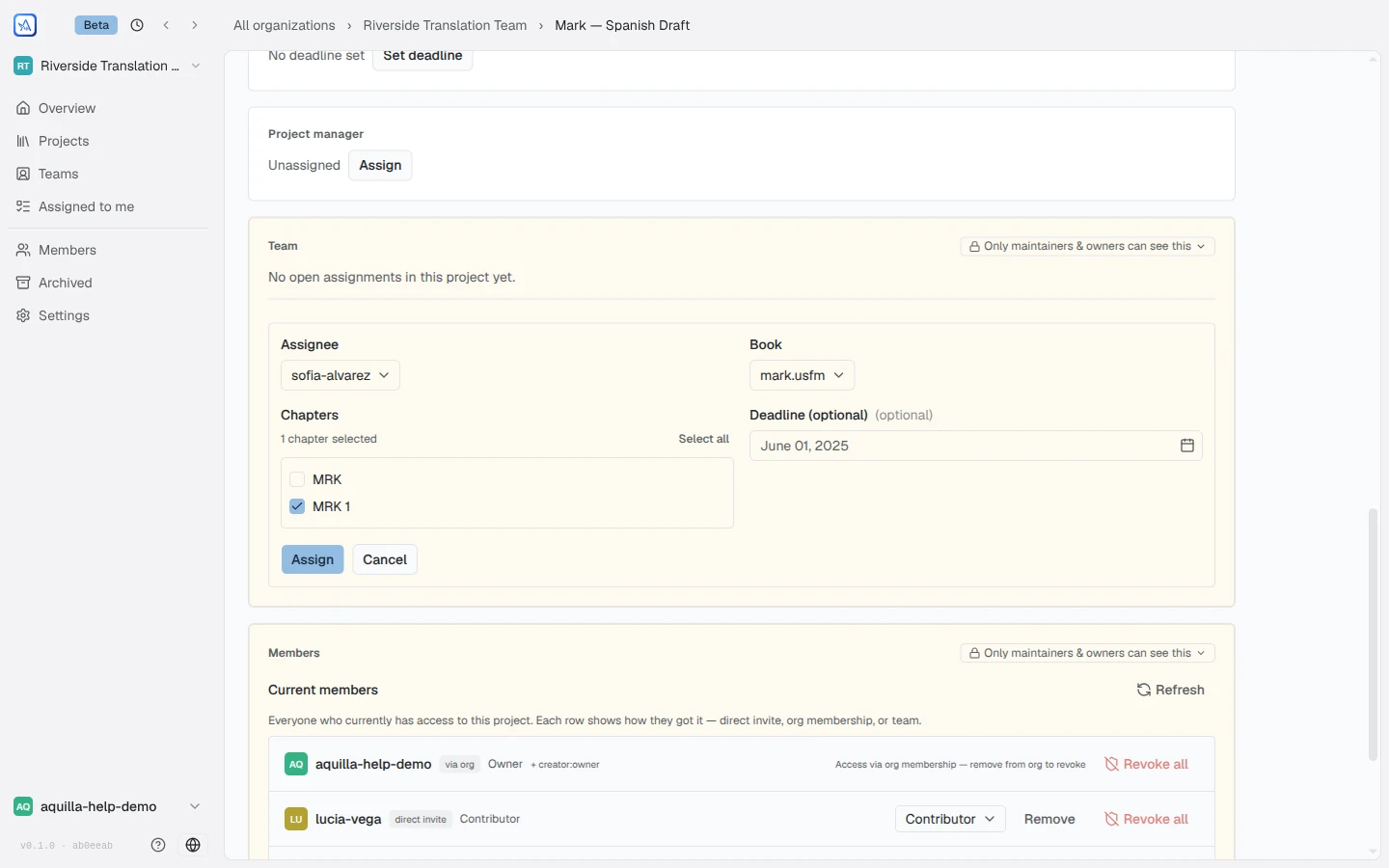
Once assigned, the Team card tracks each person’s open work and progress, with an Activity link per assignee, and the work appears in the assignee’s Assigned to me page. Inside a project, your own open work is also one click away: My assignments is a button among the workspace sidebar’s rows, with a count, and it opens your list in a popover. It shows only when you have assignments.
A Validate assignment counts the assignee’s own approvals in its language, for text and for recordings, in one wording everywhere, such as “Validated 34 of 40 · 6 left · 2 changed since”. Lines still waiting on a translation or a recording are counted separately, never as left. “Changed since” counts lines they approved in an earlier version. With self-validation off, lines they edited or recorded themselves leave the count. On the Team card these rows sit under Validation assignments, furthest behind first; in the plan and the inboxes they carry a Validating chip. Assignments are direction, not enforcement: they don’t restrict what anyone can edit, they record what each person should be doing.
By default only project leads and maintainers assign work; an organization owner can raise or lower that floor with Who can assign work in organization settings. Separately, an organization can also let members claim work for themselves: the Allow self-assignment switch there lets a Contributor or above “claim a book/chapter/take for themselves from the assign-work picker — they still can’t assign work to anyone else.”
Work pinned to a language shows a language badge in Assigned to me, in the Team card, and in the plan. The badge uses the lane’s name when it has one and otherwise the language code. Work on a project’s main language shows the main language, not a blank badge. Opening an assignment from Assigned to me takes you into the editor on that language.
Removing an assignment
Section titled “Removing an assignment”To take work back from someone, open the organization’s Overview page and find the Team workload card. Each open assignment is a row showing the person, the project, the language, and the scope. Under the scope, a muted line gives the date it was assigned (“Assigned {date}”), its due date when it has one (“Due {date}”), and an Overdue or Due soon chip when the deadline calls for it. Each of the card’s two lists (work to translate, and validation progress) shows five rows at first; Show {count} more, Show all ({count}) and Show fewer under a list change how many you see. Select the X at the end of the row (“Remove this assignment”). The same X sits on each row of the Team card’s Validation assignments list and the plan’s Assigned to. The X turns into a red Confirm with Cancel beside it; choose Confirm to remove the assignment. Cancel, Escape, clicking elsewhere, or four seconds untouched put the X back. Removing it only closes the assignment: translated or validated work stays exactly as it was.
Removal is one assignment at a time. If you only want to take away part of an assignment, remove it and assign the smaller piece again. You need the same access as for assigning work (a project lead or maintainer by default, or whatever Who can assign work is set to in organization settings) on that project. The card appears only when the organization has open assignments, and it follows the organization’s member-progress and member-list visibility settings. A lane coordinator removes their own assignments from Handed out by you instead.
Lane coordinators
Section titled “Lane coordinators”When an organization owner turns on Allow language lane coordinators to assign work (see Org settings & billing), a Contributor or above who is limited to certain languages can assign work without being a lead. This includes a guest who is a project member but not in the organization. A lane coordinator:
- Gets Assign work in the editor, and only in the languages they were given. The Language lane field offers just those languages. With one language, the field names it and the work goes to that language.
- Can assign only people who can do the work: a Contributor or above who is
allowed to work in that language. Picking anyone else is refused with
“
{username}can’t be given work in{language}. They need to be a Contributor or above, and allowed to work in{language}.” Trying another language gives “You can only assign work in the language lanes you’ve been given.” - Sees a Handed out by you section in the workspace sidebar, below the
sidebar’s rows. It lists the open work they assigned in this project, each row
showing the file, the language, and “To
{username}”, with an X button to remove it. They can remove only their own assignments, and only in a language they still hold.
Coordinators cannot open the org’s Team workload panel. A member with no language limit is not affected by this setting. Giving someone a language limit is covered in Roles & permissions.
For staffing a person onto a target-language lane rather than a file, see Lane access & staffing.
Help assistant
AI answers from the Aquilla docs — may make mistakes.